
Take the TUI for a spin
The TUI is l2trace’s primary interface. Six modes accessed from a home
screen, with an audit-time picker at the top that’s always live: type
5m ago into it and every visible row on every screen re-queries for
“what we believed five minutes ago.”
Launch it after running through the first-traceroute tutorial:
make tuiThe home screen
Section titled “The home screen”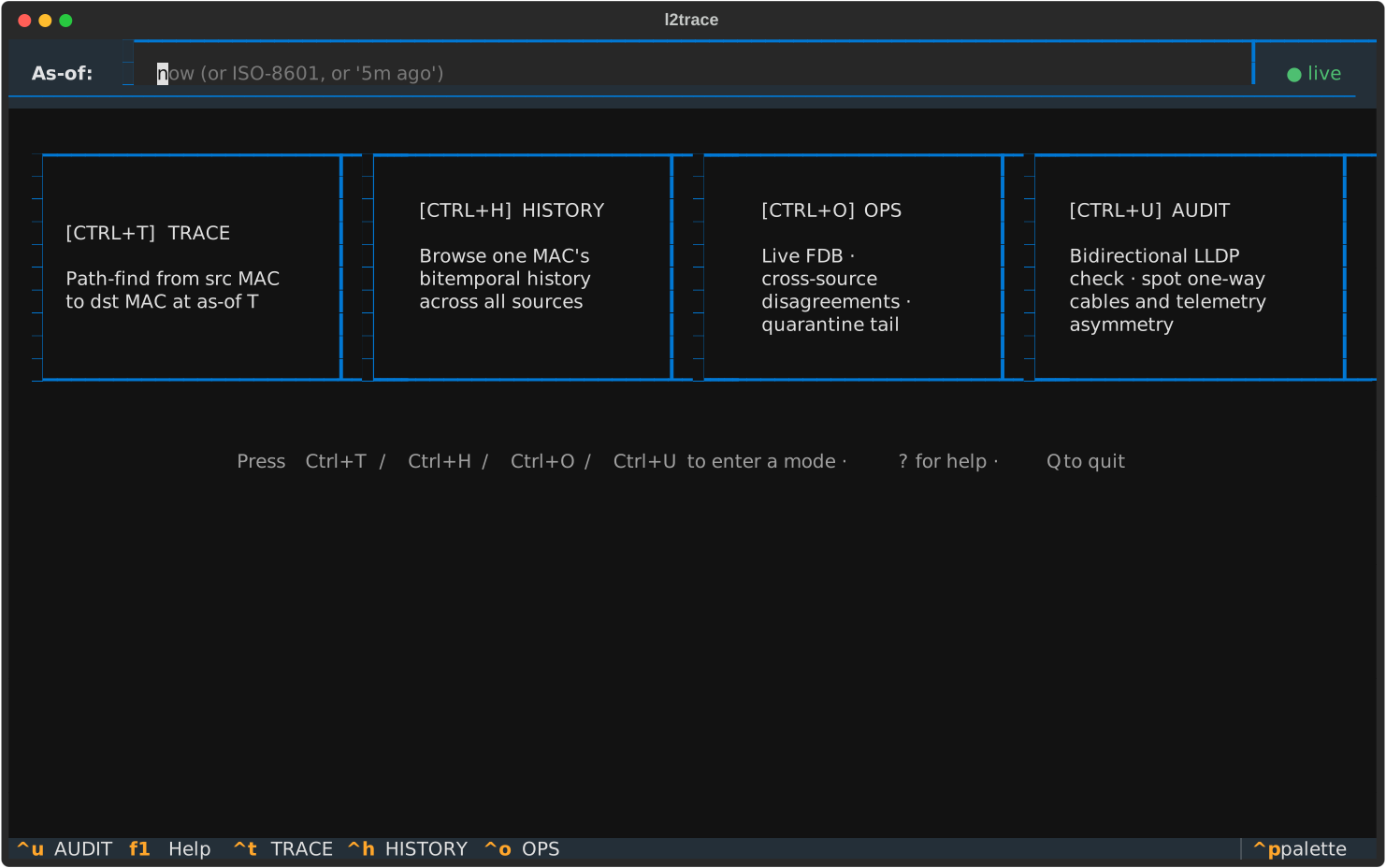
Six tiles — TRACE, HISTORY, OPS, AUDIT, CHANGES, DIFF, in a
3×2 grid. Keyboard shortcuts:
- Ctrl+T → TRACE mode
- Ctrl+H → HISTORY mode
- Ctrl+O → OPS mode
- Ctrl+U → AUDIT mode
- Ctrl+G → CHANGES mode
- Ctrl+D → DIFF mode
- Ctrl+W → ROGUE-SW (unmanaged-switch detector)
- F1 or ? → per-screen help overlay
- Escape or Q → back to home
- j / k → vim-style cursor on lists and tables
The bar at the top of every screen is the as-of header. It accepts:
now(the default — live mode, dot is green)5m ago,2h ago,1d ago(relative)2026-05-10T14:42:00Z(ISO-8601)
Press Enter to commit. The status flips to ⏱ 2026-05-10T14:42:00+00:00
in amber, and every screen that watches App.audit_time re-queries.
TRACE — hop-by-hop path
Section titled “TRACE — hop-by-hop path”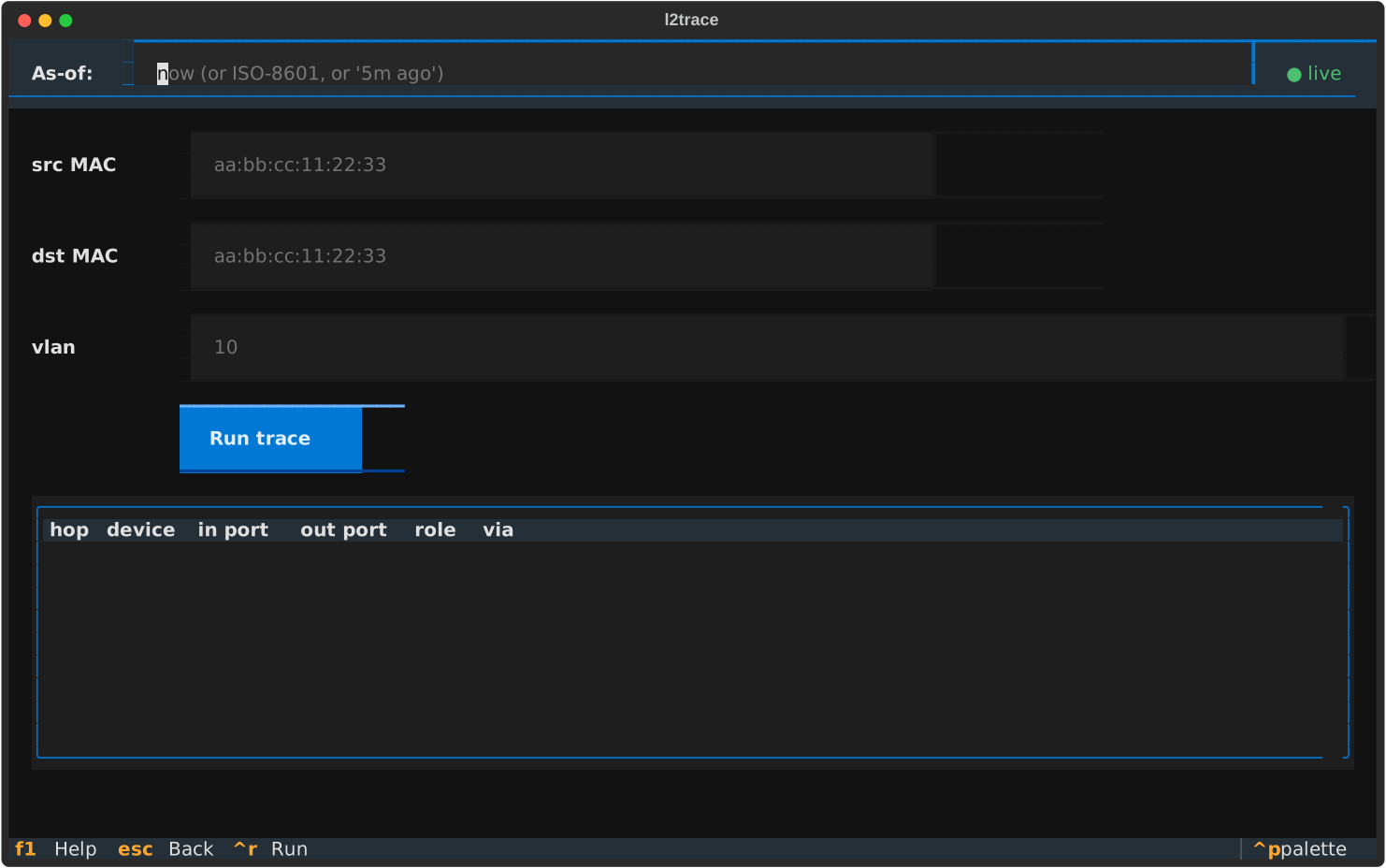
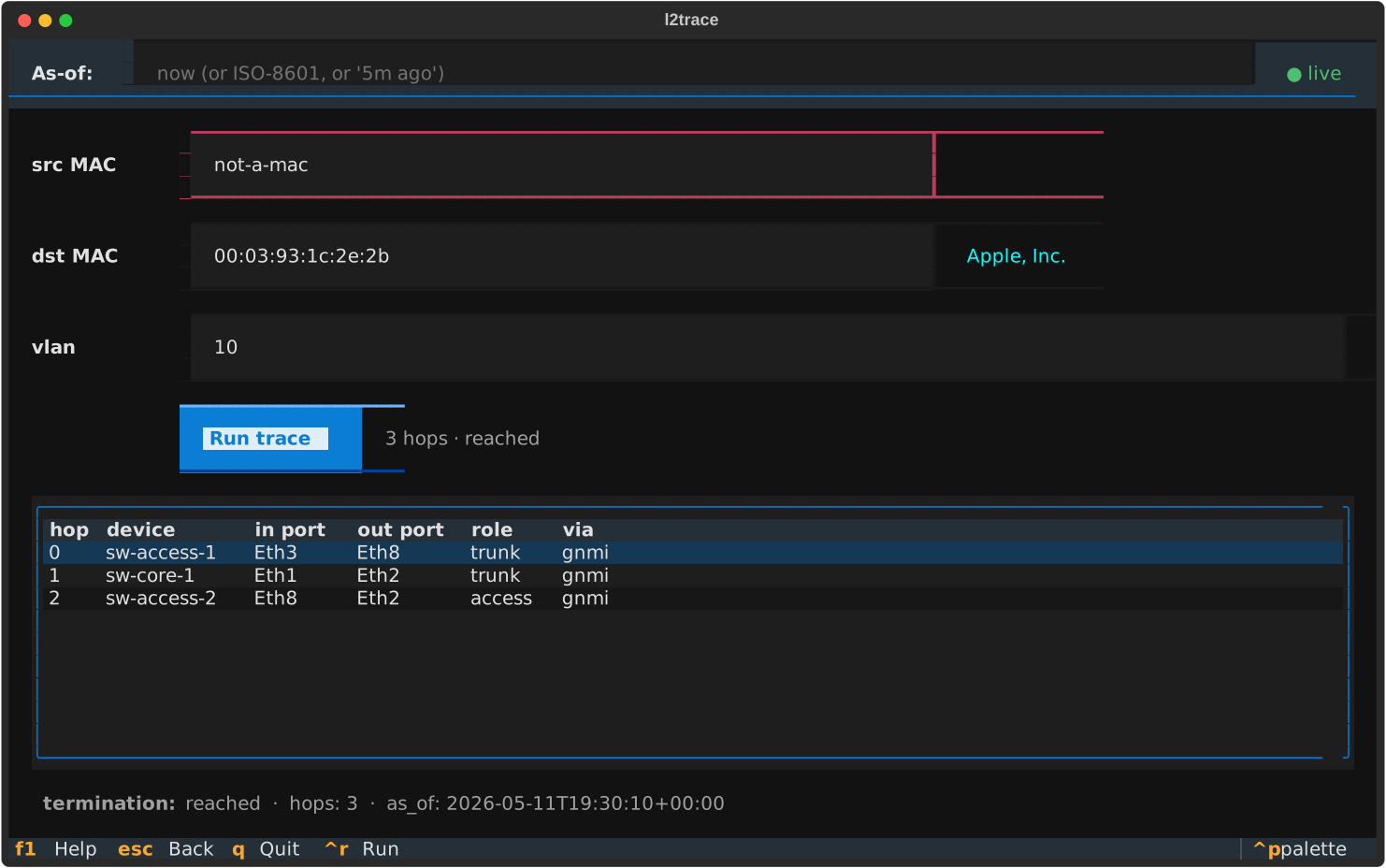
Fill in source MAC, destination MAC, and VLAN. The MAC inputs validate as
you type, and the manufacturer pops up next to each field the moment
your MAC matches a known OUI prefix — Apple, Inc. next to a 00:03:93:…
laptop, Cisco Systems, Inc next to a 00:1a:a1:… IP phone, etc.
(Requires make oui-refresh — see Refresh the OUI registry.)
A malformed MAC turns the field red:
When valid input is in place, the form looks like this:
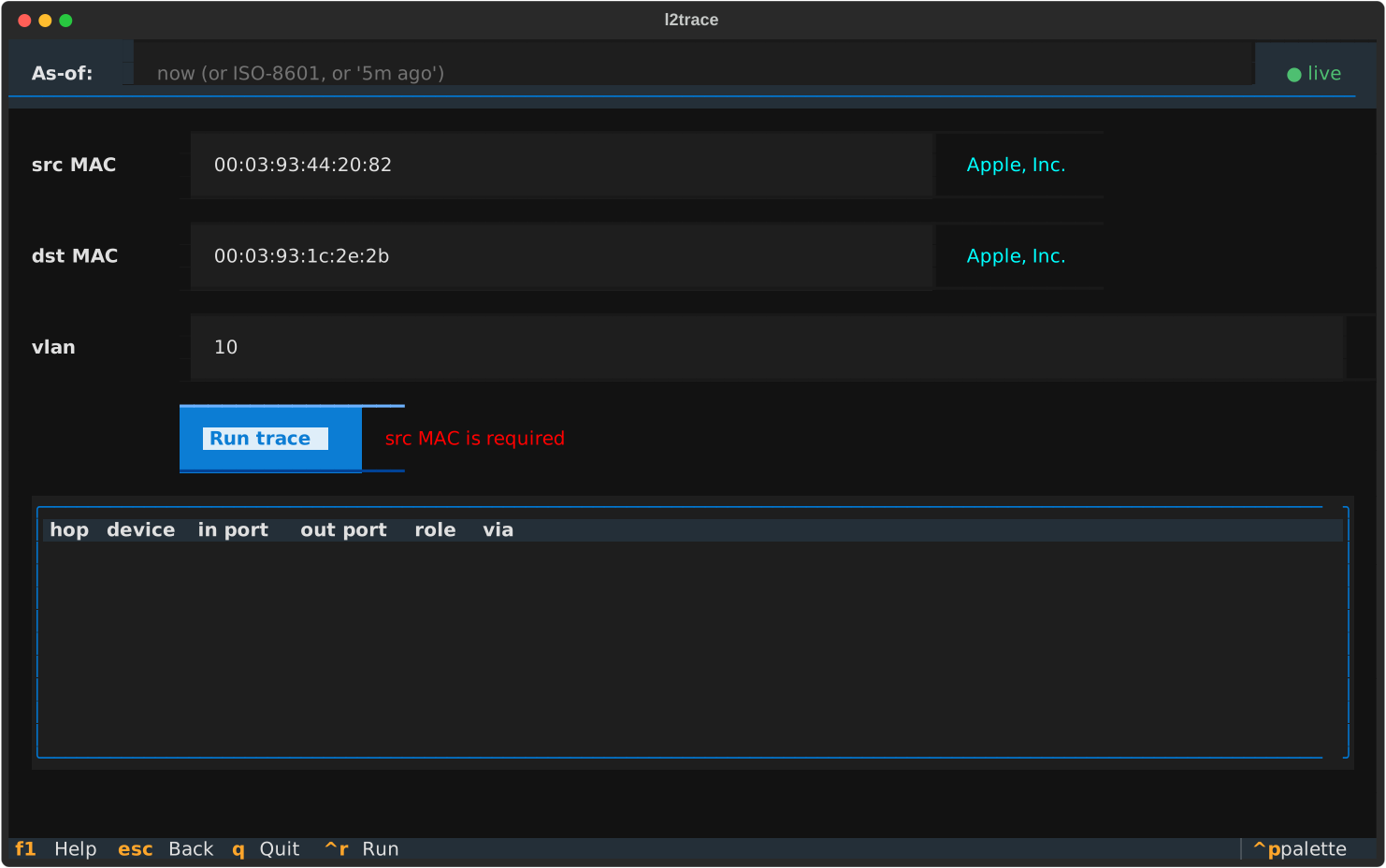
Press Ctrl+R or click Run to execute. A successful trace
(alice-macbook → bob-macbook across sw-access-1 → sw-core-1 → sw-access-2):
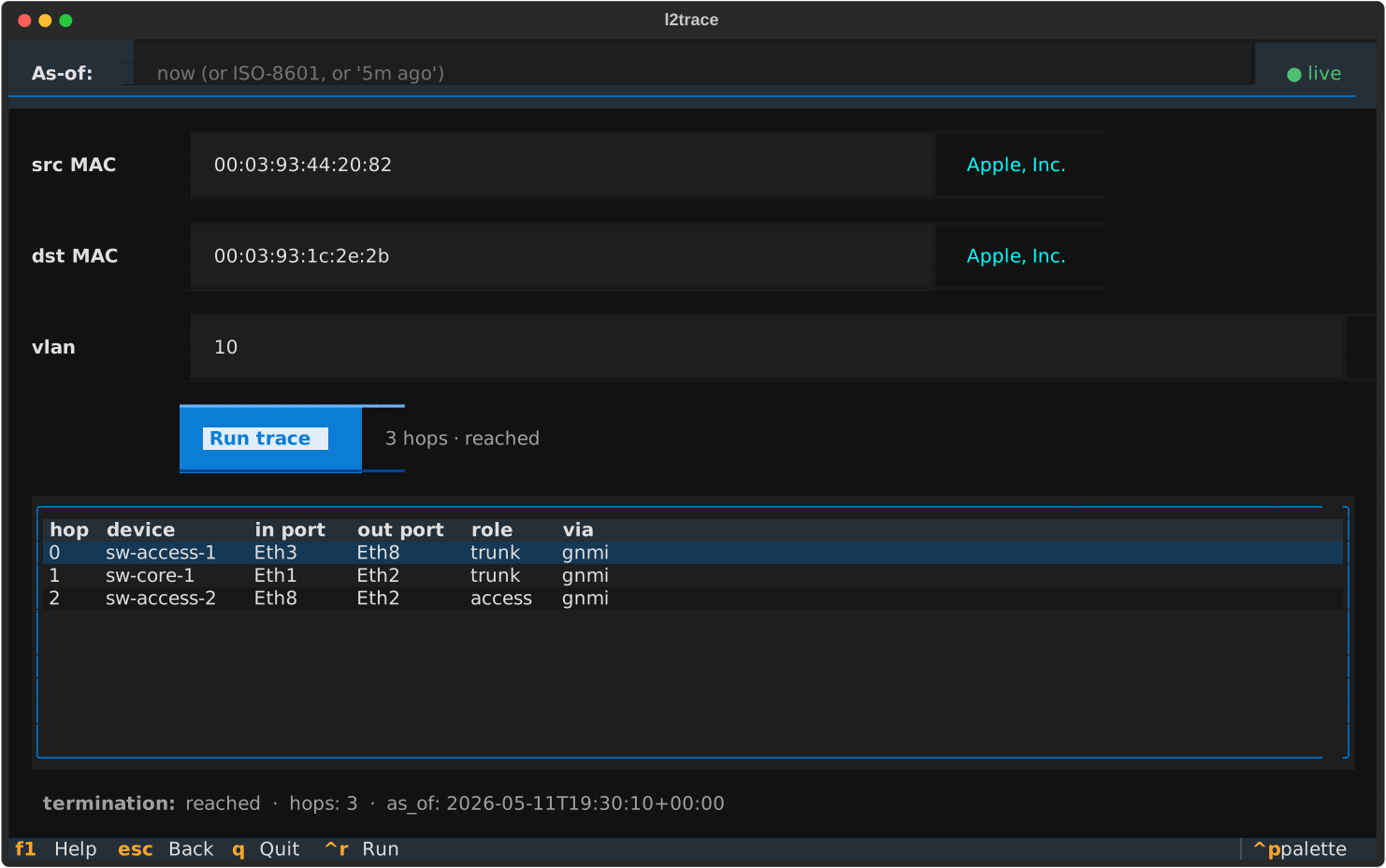
Each row is one hop: the device, the ingress port (where the frame entered),
the egress port (where it leaves toward the next hop), the port role (access
vs trunk), and the source that vouched for that CAM entry. The termination
line below tells you why the trace stopped — reached, floods, dead-end,
loop, or max-hops.
Press Ctrl+R or click Run. The hop table populates with one row per
device on the path, showing in-port, out-port, port role (access / trunk),
and the source that vouched for that hop (gnmi, snmp, etc.).
Termination tells you why the trace stopped: reached (good), floods
(dst MAC not in CAM at some intermediate switch — frame would be flooded
there), dead-end (no adjacency to follow), loop (visited-set guard
fired), or max-hops (limit reached).
Change the as-of header while looking at a result — the trace re-runs at the new audit time without re-typing anything.
HISTORY — one MAC’s full timeline
Section titled “HISTORY — one MAC’s full timeline”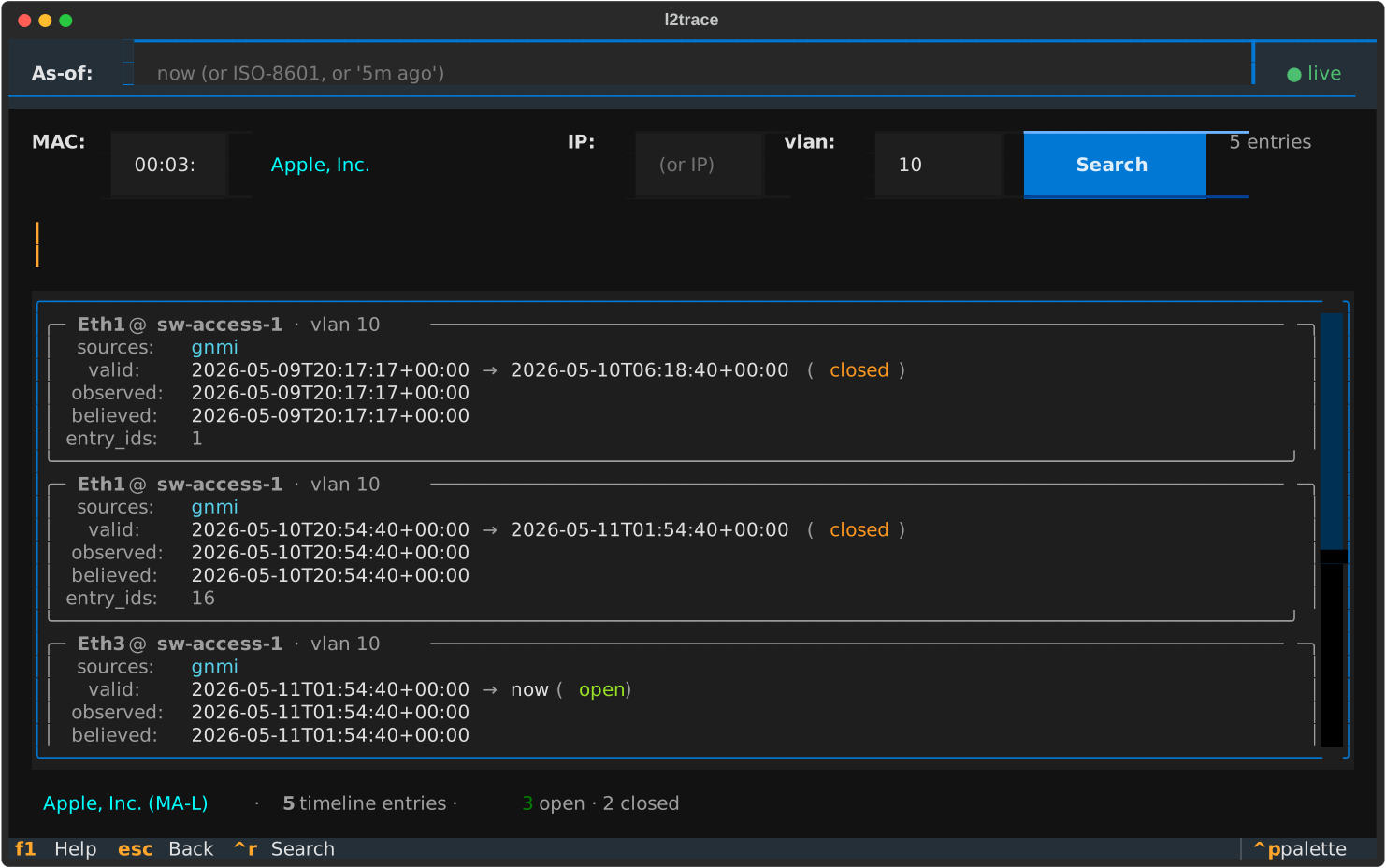
Search by MAC (and optionally VLAN). The timeline shows every row from
mac_observation for that MAC, collapsed across sources (so a MAC seen
simultaneously by gNMI and SNMP at the same port appears as one row with
sources: gnmi, snmp).
Each timeline entry shows:
port @ device(with vendor label ifoui_vendoris populated)sources— which collectors saw itvalid:— the wire-time range, plusopen/closedstateobserved:— earliest device-clock observationbelieved:— earliest time the system recorded the beliefentry_ids:— the actual primary keys, useful when joining manually
The gap between observed: and believed: is the latency for that
row. Big gap = either a clock-skew event or a queue-dwell — see
quarantine for the difference.
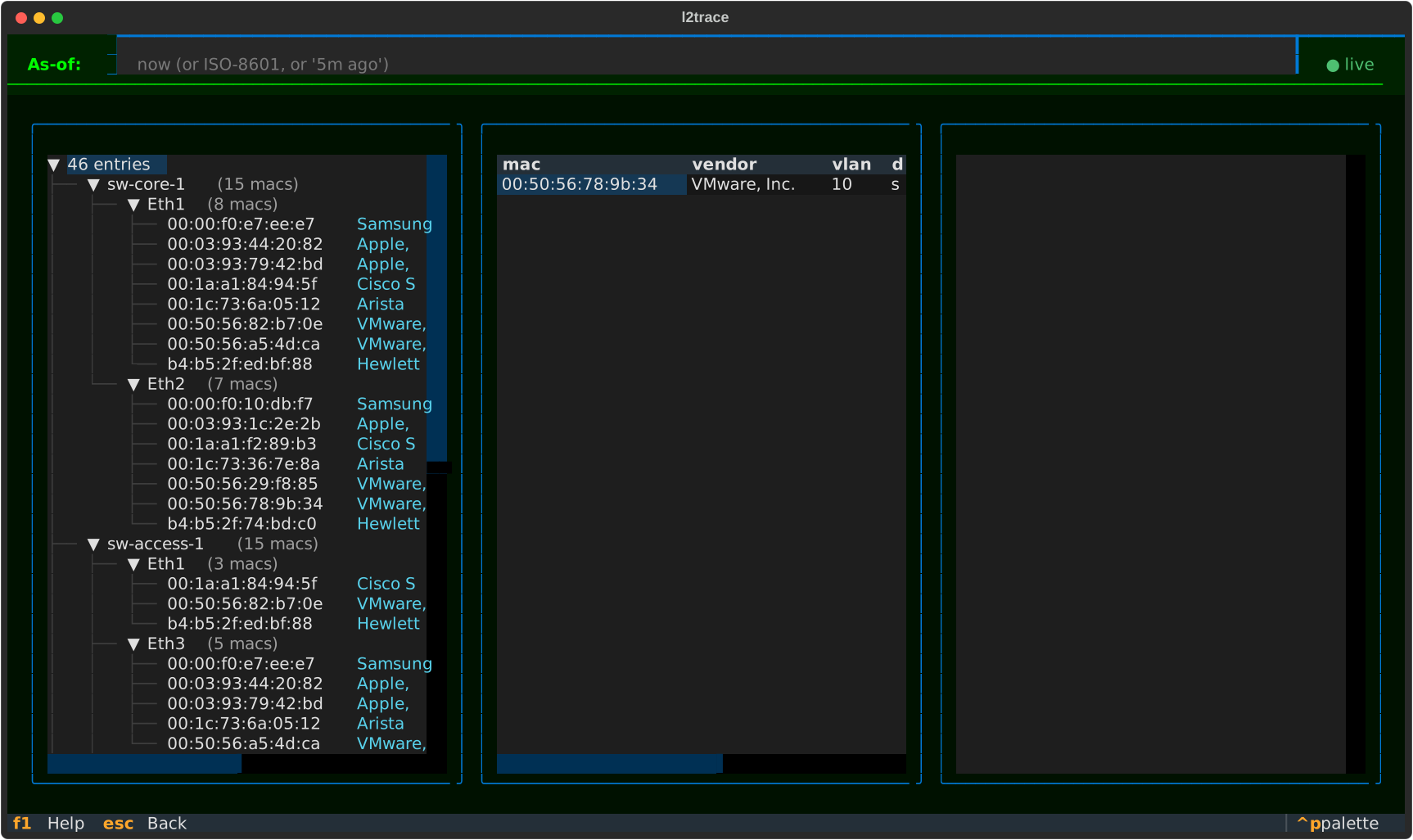
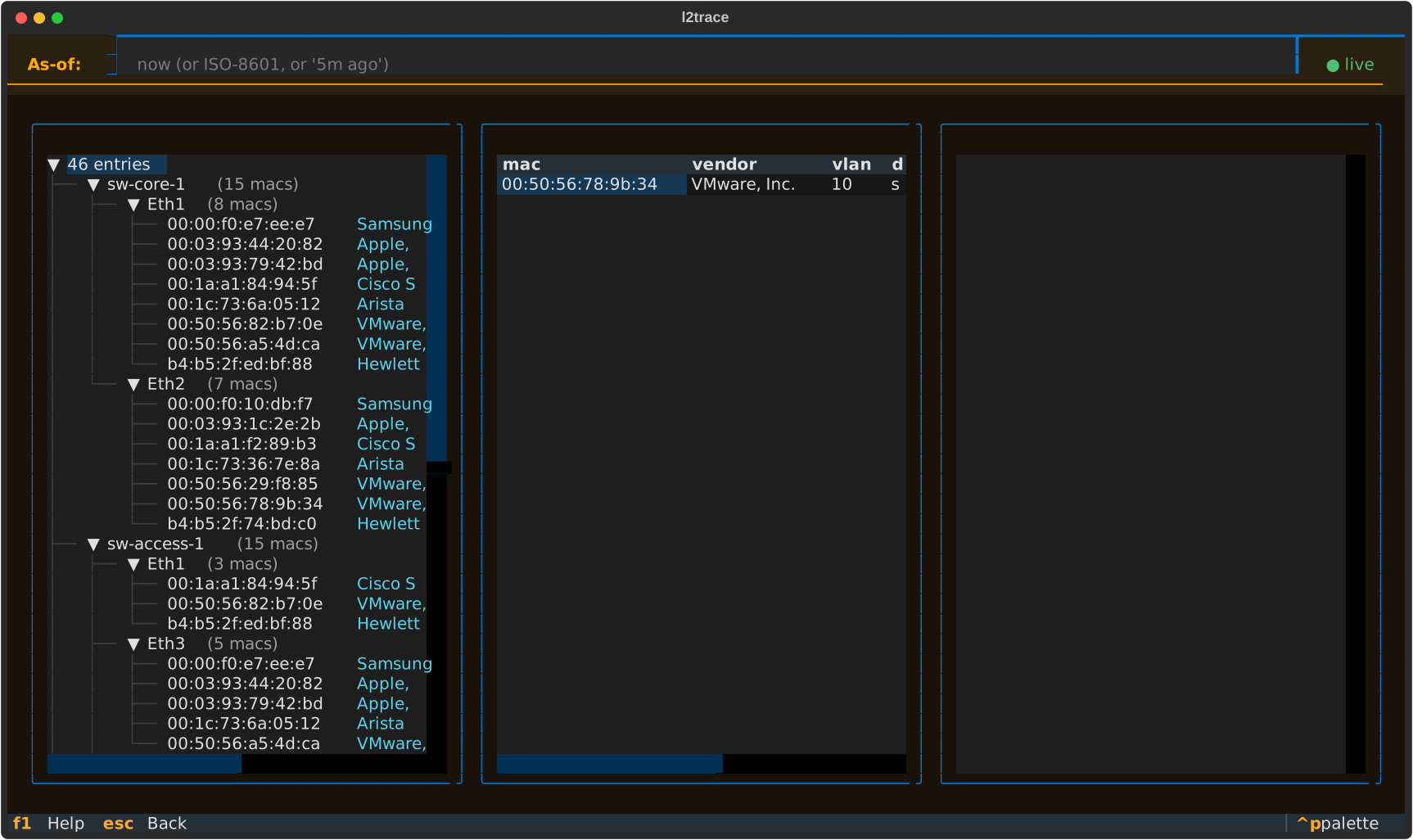
OPS — live dashboard
Section titled “OPS — live dashboard”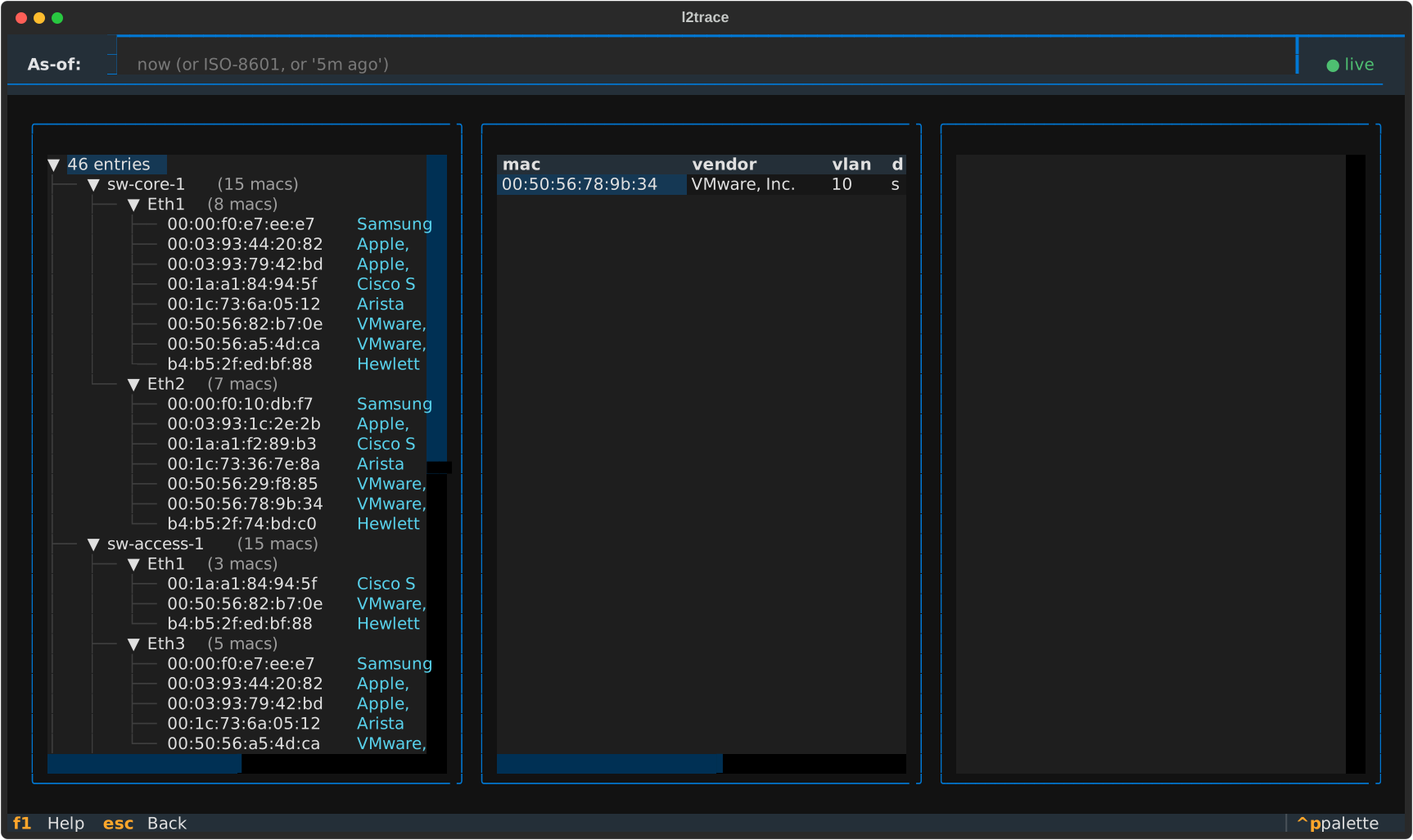
Three panes:
- Live FDB (left): tree-view of
device → port → MACsfor the current as-of time. Refresh withRor change the audit-time picker. - Disagreements (middle): rows where multiple sources point at different ports for the same (mac, vlan, device). Auto-refreshes every 10 seconds. This is the “what’s broken right now” pane — empty = good.
- Quarantine (right): live tail of NATS quarantine events.
Color-coded by reason: yellow for
device-skew, magenta forqueue-dwell, red forintegrity-error.
The disagreement view answers questions like “is gNMI lying to us about where MAC X is?” without needing to know which CLI to type at which switch. How to interpret the disagreements pane.
AUDIT — bidirectional LLDP
Section titled “AUDIT — bidirectional LLDP”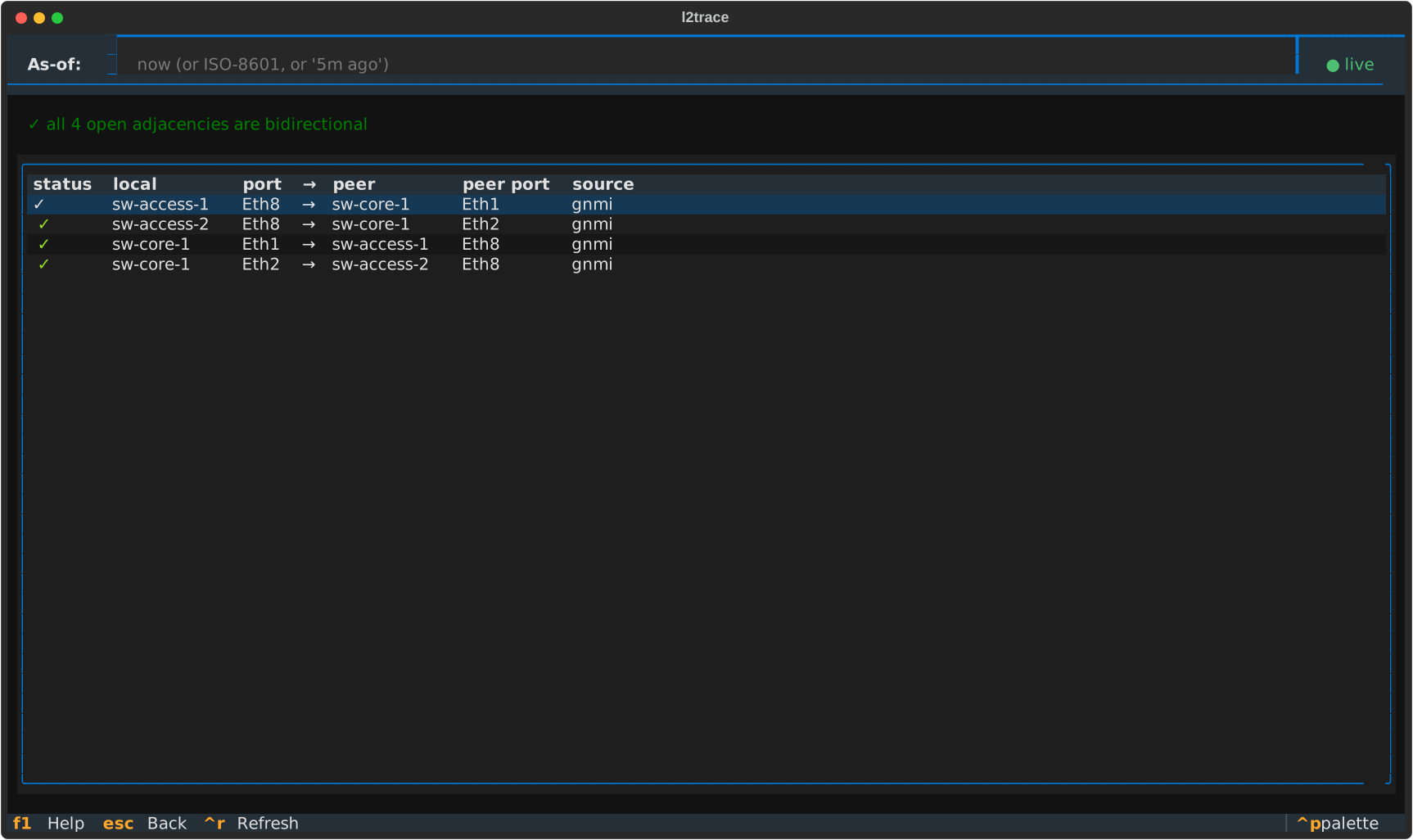
One table. For every open adjacency row from A→B, checks whether B→A
exists too:
- ✗ no reverse — no peer observation back from any source. Real problem: one-way cable, LLDP disabled on peer, or port shutdown.
- △ source asym — link is bidirectional, but the same source only sees one direction. Telemetry asymmetry, not a cable issue — gNMI on one end hasn’t polled yet while SNMP on the other already has.
- ✓ — both directions confirmed by the same source.
Press Ctrl+R to re-run the audit; changing the as-of header re-fires
it automatically. This is the same query as l2trace audit-adjacencies
on the CLI — see Audit LLDP adjacencies for
the operator playbook, and How peer resolution works
for why pending unresolved rows are excluded.
CHANGES — what churned on the fabric
Section titled “CHANGES — what churned on the fabric”Press Ctrl+G. A window picker (24h / 7d / 30d) sits under the
as-of header, and below it four stacked tables report everything the
bitemporal log says happened in that window.
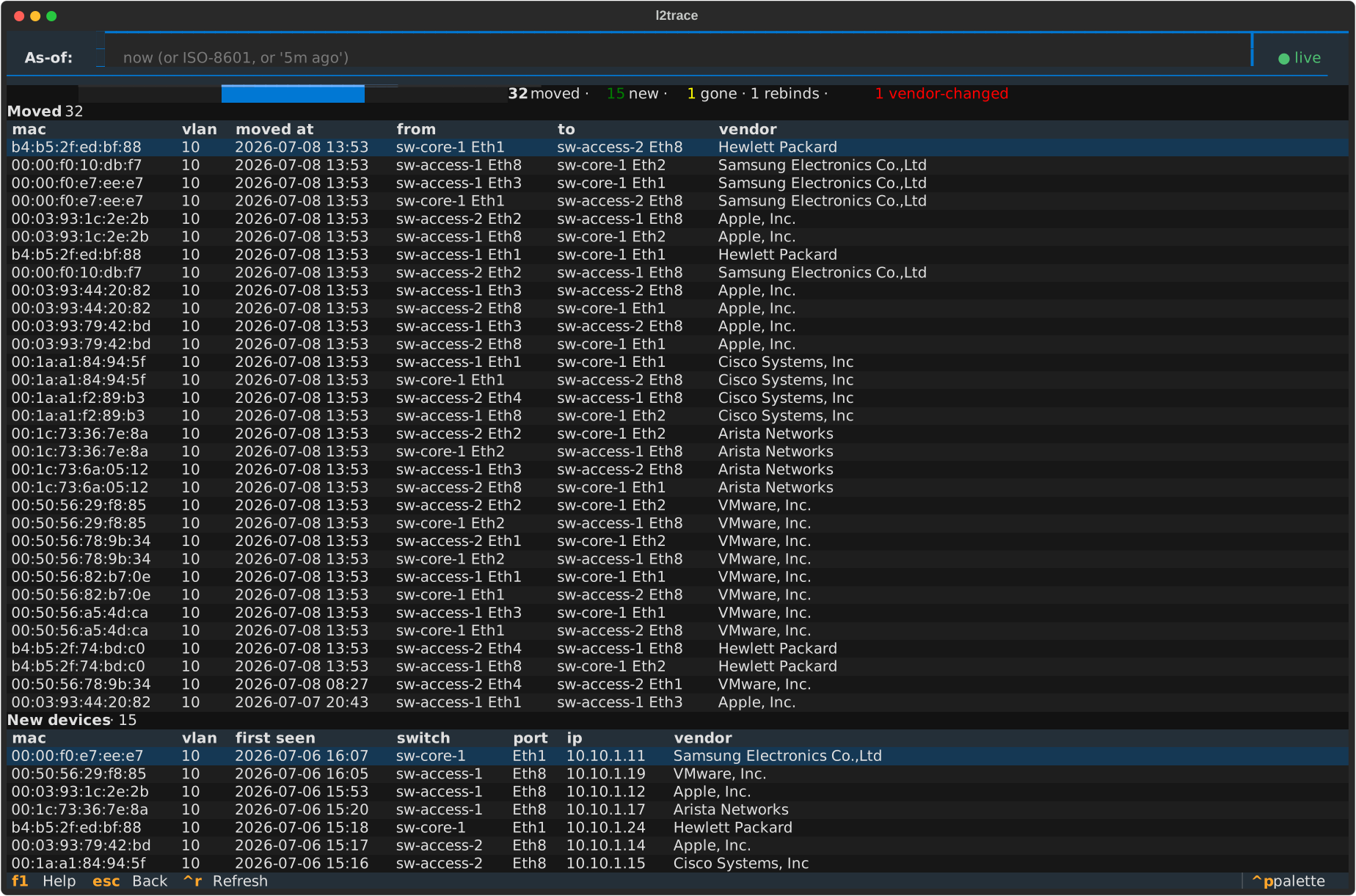
- Moved — a MAC seen on a different (switch, port) than immediately before.
- New devices — MACs whose earliest-ever sighting lands in the window.
- Removed — MACs whose last sighting closed in the window with no open successor.
- IP rebindings — an IP that swapped its bound MAC. A row where the
vendor changed gets a red
!marker and the status line calls out the count: a DHCP renewal keeps the same MAC and vendor, so a different-vendor MAC on an address is the takeover / spoof tell.
The window is a valid-time span ending at the as-of point, so scrubbing the as-of header back shifts the whole window with it. Refresh is operator-triggered (Ctrl+R) — this is a periodic review, not a live monitor. Same query surface as the web Changes screen.
DIFF — did an L2 path change between two times?
Section titled “DIFF — did an L2 path change between two times?”Press Ctrl+D. Enter a source and destination MAC, a VLAN, and two
belief times — t1 (before) and t2 (after), each accepting now,
now-30h / now-2d, or ISO-8601. The same traceroute runs at both,
aligned hop-by-hop.
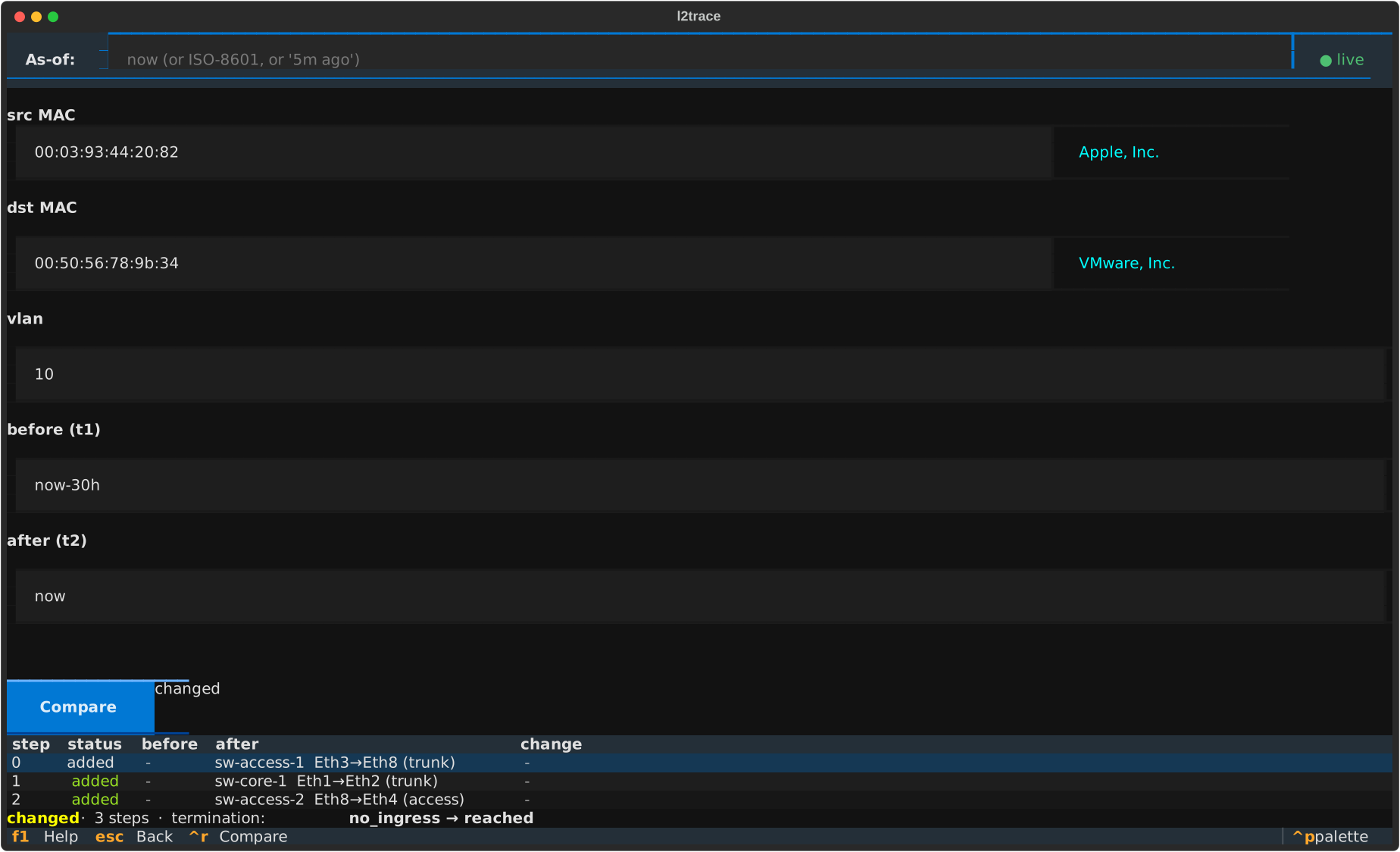
Each row is one step, coloured by status: unchanged, changed (dim /
yellow), added (green — the hop only exists at t2), or removed (red).
The headline verdict says unchanged or changed, and calls out a
termination change explicitly — the capture shows no_ingress → reached,
the source having appeared between the two times so every hop reads
added. The belief-time picker applies to both traces equally, so you
can ask the same “did the path change” question as of any past belief.
The web counterpart is the Diff screen.
ROGUE-SW — unmanaged switches on the edge
Section titled “ROGUE-SW — unmanaged switches on the edge”Press Ctrl+W. The detector lists edge ports that look like an
unauthorized switch or hub was plugged in, worst-first. The leftmost column
is a confidence marker (! high, • medium, · low); kind reads hub
for a silent box that announces nothing (flagged on its pile of downstream
MACs) or unmon for one that announces itself over LLDP/CDP but that
l2trace has no collector for. The Min MACs buttons (2 / 3 / 5) set how many
MACs a silent port needs before it’s flagged and re-query on change;
unmonitored switches are flagged regardless. Ctrl+R refreshes.
Unlike every other screen here, this one reads current belief only — the as-of picker doesn’t drive it, because “what looks unmanaged right now” is a live question. See find an unmanaged switch for the browser and API versions and how the detector decides for the heuristic.
Themes
Section titled “Themes”Three themes ship out of the box. Pick one via TUI_THEME in .env:
- default — terminal palette, green-on-near-black
- hacker — pure green-on-black, more aggressively monochrome
- amber — amber-on-black, “old vt100” feel
TUI_THEME=hackerSame TRACE screen, three themes (note this is the same SVG dimensions — Textual renders each theme deterministically from its CSS layer):
| default | hacker | amber |
|---|---|---|
| 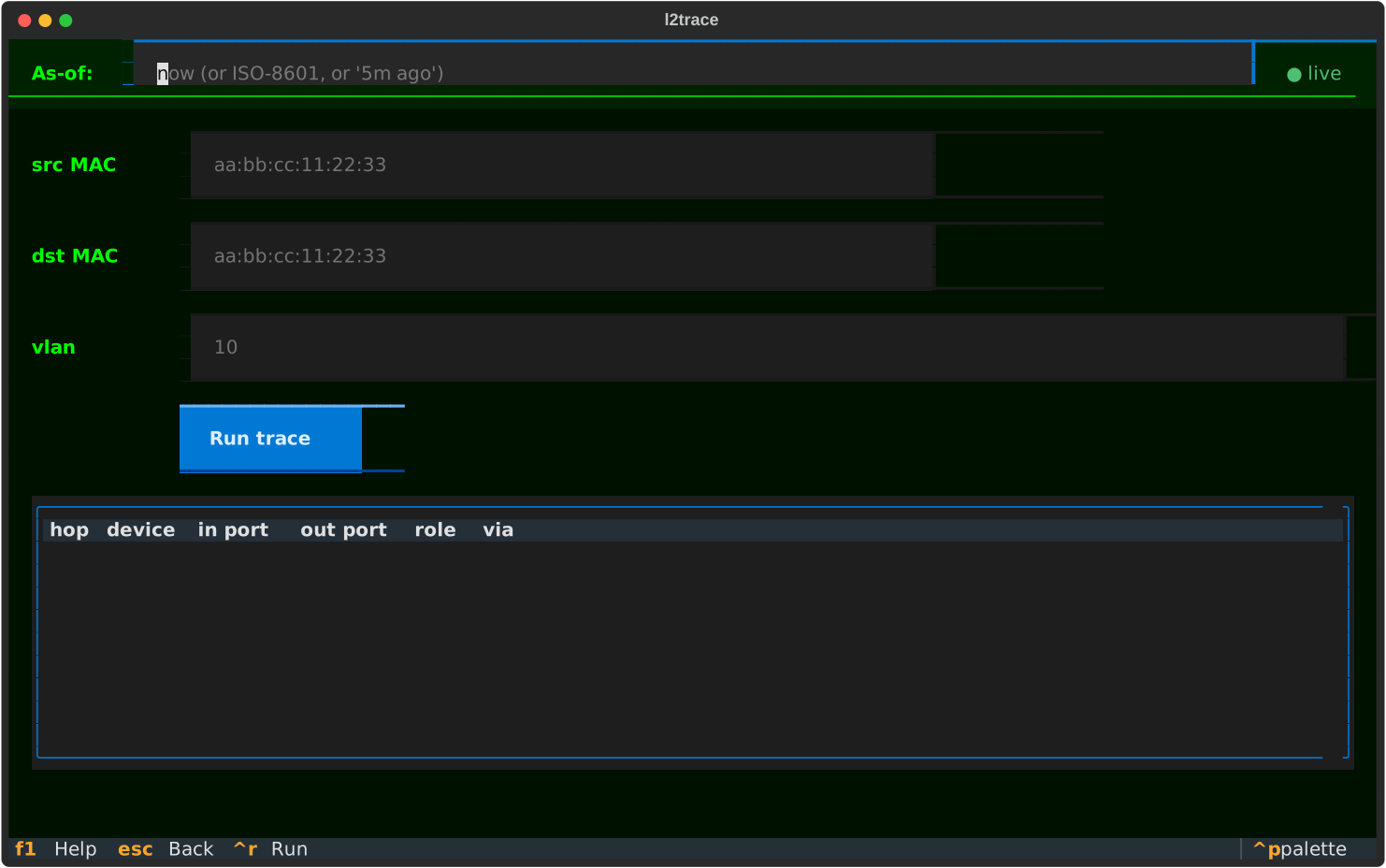 | 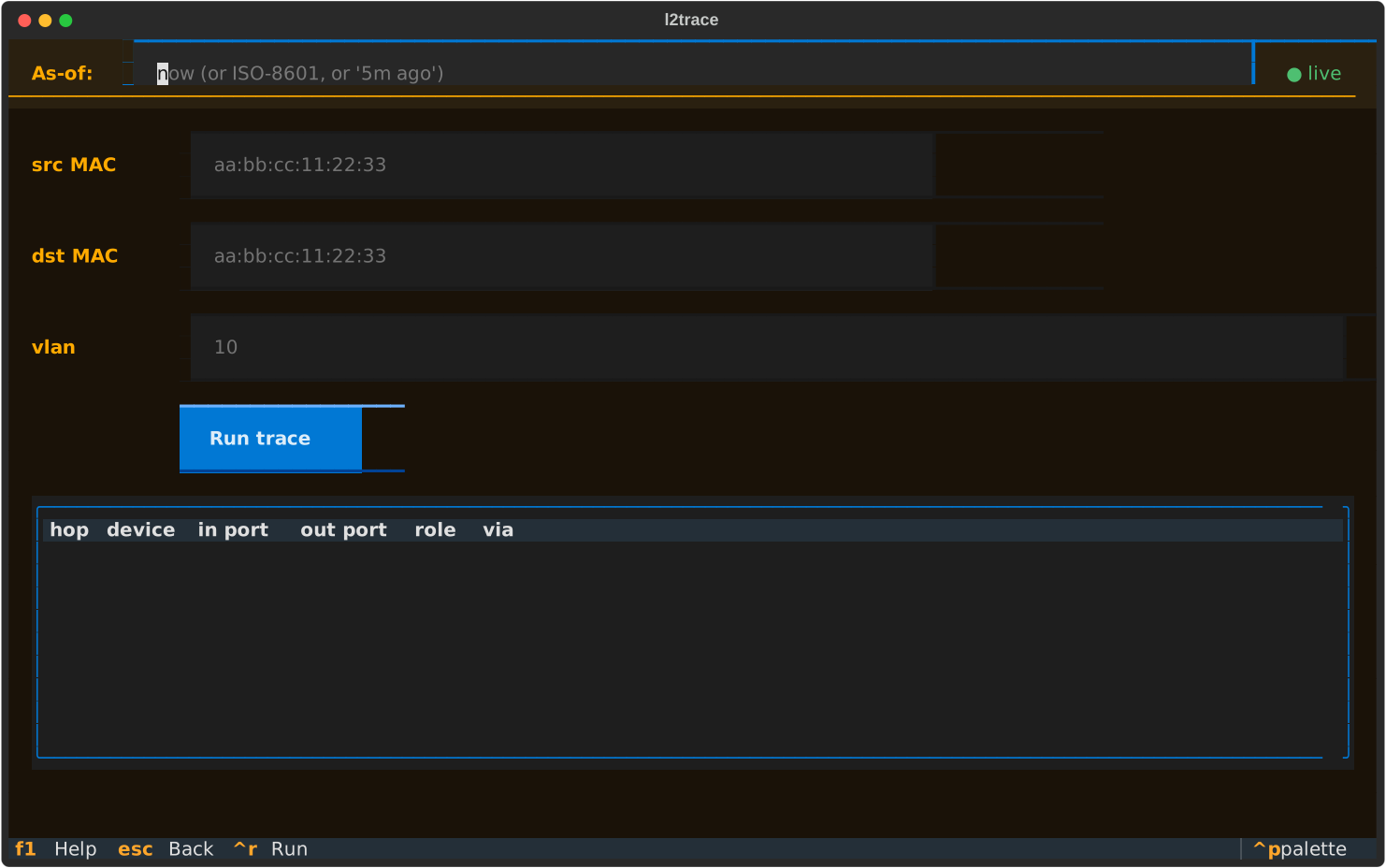 |
And the OPS dashboard across themes — useful for showing what each one looks like with denser content:
| default | hacker | amber |
|---|---|---|
|  |  |
What’s next?
Section titled “What’s next?”- Investigate a real MAC: How to investigate a MAC’s history
- Spot collector disagreements: How to spot disagreements
- Try the audit-time picker: Querying past beliefs