
Your first traceroute
This tutorial gets you from a clean repo to a successful L2 traceroute and
a populated TUI in about ten minutes. You’ll need Docker and make. No
network gear required — the demo replays events that emulate two hosts
moving between two switch ports.
Prerequisites
Section titled “Prerequisites”- Docker (with
docker composev2 — notdocker-compose) make- ~5 minutes for the initial container image build
git cloneof the repo
1. Bring up the stack
Section titled “1. Bring up the stack”cp .env.example .envmake upmake up starts three containers:
- postgres (with the Apache AGE extension for graph projections)
- nats (JetStream-enabled, the event bus)
- reconciler (the state-machine + bitemporal writer, plus the compactor co-process)
Nothing binds to host ports. Everything inside the stack talks via the
compose network; host-side tools (psql, the TUI, demo scripts) go through
docker compose exec or docker compose run --rm.
You can verify with:
make psYou should see all three as Up (healthy). If postgres takes more than
60 seconds to go healthy, check make logs — the AGE extension load is
slow on first-boot.
2. Apply migrations
Section titled “2. Apply migrations”make migrateThis applies all alembic revisions to head: the bitemporal schema (0001),
the mac_observation_disagreement view (0002), the event-provenance
columns (0003), and the oui_vendor lookup table (0004).
3. Seed the OUI registry (optional but nice)
Section titled “3. Seed the OUI registry (optional but nice)”make oui-refreshPulls the three IEEE manufacturer-prefix registries (~5 MB total) and
UPSERTs ~52k vendor rows. With this in place, the TUI will show
Cisco Systems, Inc next to MAC 00:1A:A1:… instead of bare hex.
Skipping this is fine — the TUI gracefully degrades to bare-hex display
when oui_vendor is empty.
4. Replay the demo
Section titled “4. Replay the demo”make replayThis script:
- Seeds a one-device, two-port topology (
sw1withEth1andEth2). - Publishes three
mac_learnedevents to NATS:aa:bb:cc:11:22:33learned onEth1(host h1 first appears)aa:bb:cc:44:55:66learned onEth2(host h2 first appears)aa:bb:cc:11:22:33learned onEth2(h1 moves to Eth2)
The reconciler picks them up automatically (it’s already running). The
move from Eth1 → Eth2 triggers a forward-time valid_during close on
the original row plus a new row at the new port — the bitemporal log
records the move as an explicit event.
You should see output like:
[2/3] publishing 3 events to NATS... → mac_learned mac=aa:bb:cc:11:22:33 port=Eth1 event_id=019e1432-... → mac_learned mac=aa:bb:cc:44:55:66 port=Eth2 event_id=019e1432-... → mac_learned mac=aa:bb:cc:11:22:33 port=Eth2 event_id=019e1432-...5. Run a traceroute
Section titled “5. Run a traceroute”The demo’s two-port topology is simple enough that you can verify the pipeline worked with a single SQL query:
make psqlThen in psql:
SELECT mac, port_id, observed_at, upper_inf(valid_during) AS openFROM mac_observationWHERE mac IN ('aa:bb:cc:11:22:33', 'aa:bb:cc:44:55:66')ORDER BY entry_id;You should see three rows: aa:bb:cc:11:22:33 on port=1 (Eth1) with
open=f (closed), then aa:bb:cc:44:55:66 on port=2 (Eth2) open=t,
then aa:bb:cc:11:22:33 on port=2 (Eth2) open=t. The first row’s
valid_during was closed when the move event landed.
You can also exercise the actual traceroute query from the CLI:
make trace SRC=aa:bb:cc:11:22:33 DST=aa:bb:cc:44:55:66 VLAN=10For a one-device topology this is admittedly anticlimactic — both hosts are on the same switch, so the path is one hop. The interesting bit is that you can now also do:
make trace SRC=aa:bb:cc:11:22:33 DST=aa:bb:cc:44:55:66 VLAN=10 \ AS_OF=2026-05-10T22:07:00ZReplace the timestamp with a moment between the second and third demo
events. The trace will show aa:bb:cc:11:22:33 on Eth1 — the historical
truth — even though the live state has it on Eth2. That’s the bitemporal
“as of T” capability working.
What’s the TUI look like at this point?
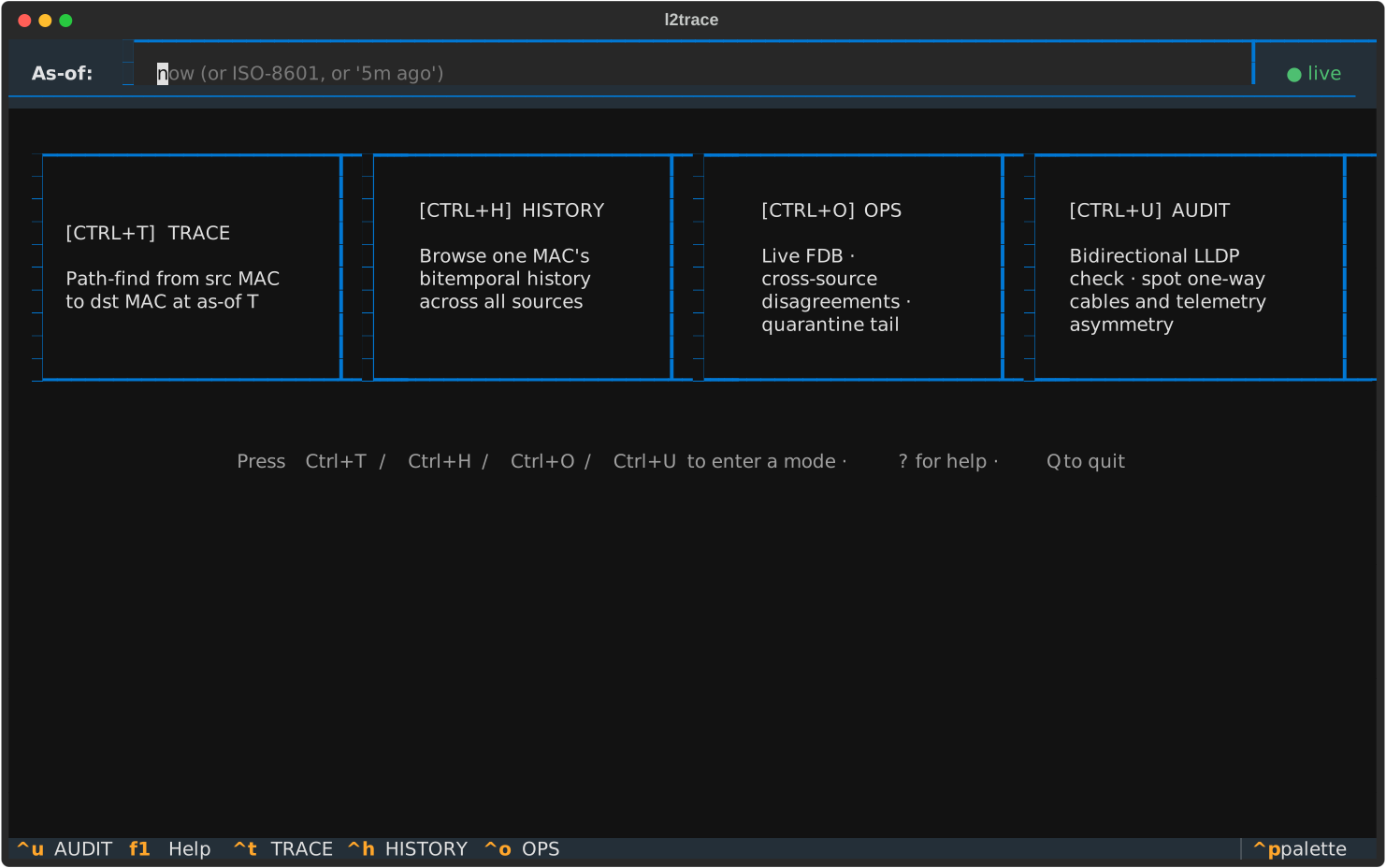
Section titled “What’s the TUI look like at this point?”After make replay lands data in the DB, the TUI’s HOME screen looks
like this (audit time is “live”; press Ctrl+T for TRACE, Ctrl+H for
HISTORY, Ctrl+O for OPS):
The next tutorial walks through each mode in turn.
What’s next?
Section titled “What’s next?”- Try the TUI — same data, far more interactive: Take the TUI for a spin
- Learn the audit-time picker: Querying past beliefs
- Read about how the move was actually classified: How late arrivals work